
Before following the steps in this article, please complete the SiteOwl Favorites Course.
The typical method of creating Favorites is to drag and drop Devices/Tasks to the Plan and then make them Favorites. This approach can be effective when adding a few Favorites but can take time when adding a large number of Favorites. For large scale Favorites creation, you can use SiteOwl’s Import capability to add multiple new Favorites to an Account using a Comma Separated Values (CSV) file. This article provides the steps to create Favorites using import.
Step 1: Create a Template CSV File
Begin with a template CSV file that includes all the required fields as well as any additional data elements you wish to include in the import. A template CSV can be created in the following ways:
- Generate your own template (recommended): Follow the steps in this article to generate your own template.
- Use Excel to create the CSV import file from scratch.
Generating your own template:
- Navigate to the Project Plan where Favorites will be added.
- At least one item must exist on the Plan. Edit the Plan and add any type of Device.
- Right-Click the Device and select the Create Favorite option.
- Save your changes.
- Click the Back arrow to return to the Devices/Tasks list.
- With the Favorites list expanded, click the gear icon.
-
Then select the Export Existing Favorites option to create the CSV template file and save it to an easy to find location.
Step 2: Updating the CSV Template with Favorites Data to Import
1. Open the CVS file in Excel and examine the row(s) below the header row. These rows contain any Favorite Devices/Tasks that were already on the Plan. These can remain in the file since the import process will only update these existing items, not add new ones.
Required ColumnsThe following columns must be included when importing Devices. A complete list of columns can be found here.
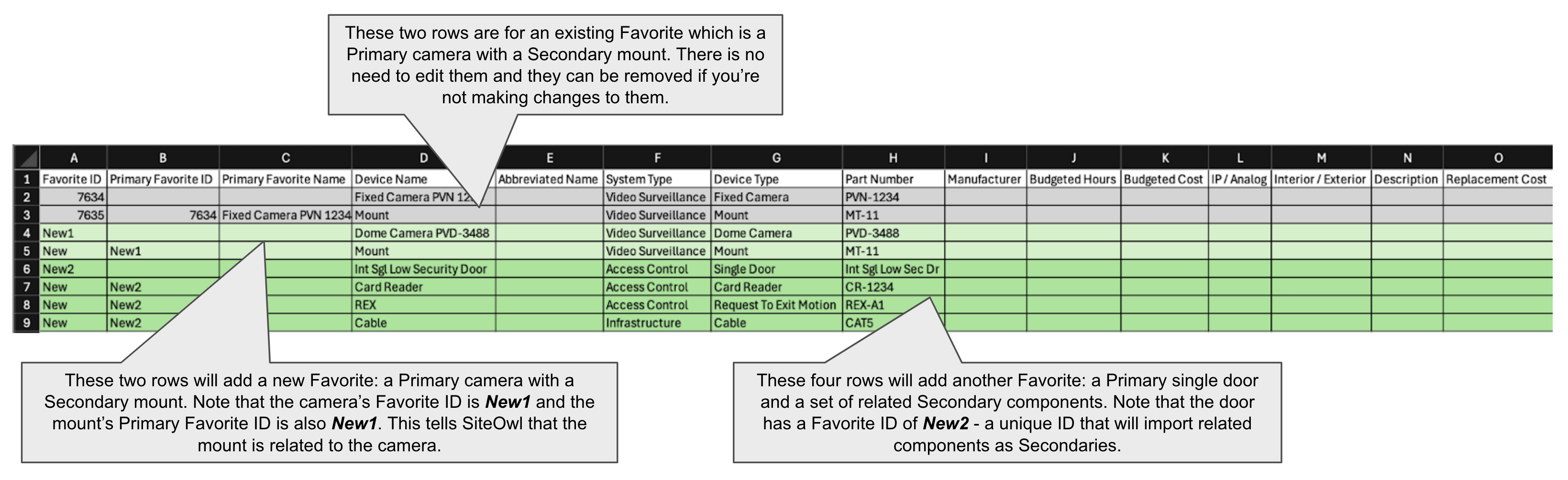
a. Favorite ID: The value you enter here will depend upon whether you intend to also import Secondary Devices for this Favorite Device/Task:
i. Primary Device/Tasks:
- For each Favorite that will not include Secondaries, enter a value of New.
- For each Favorite that will include Secondaries, enter a unique value containing at least one letter (ex. New 1, New 2, Cam 1, Cam 2).
ii. Secondary Device/Tasks
1. For each Secondary Device/Task, enter a value of New.
b. Primary Favorite ID (required only if importing Secondary Devices): Enter the Favorite ID for the Device/Task that will be the Primary for this new Secondary.
c. Name: Enter a name for this Device/Task.
d. System Type: Enter the SiteOwl System Type. A complete list can be found here.
e. Device/Task Type: Enter the SiteOwl Device/Task Type. A complete can be found here.
2. It is recommended to fill out the part number and manufacturer but not mandatory.
3. You will create one row in the CSV for each Favorite you want to add. Columns can be Required or Optional. Please refer to the rules and allowed values for each column here.
Note: When creating Secondary Devices/Tasks using import, the Primary Favorite row must be placed above the row that will create the Secondary Device.
4. After you add data to the columns for each new row, your CSV should now look something like the example below. When imported, this CSV will add four Favorites to the Plan.
 Step3: Importing Favorites
With all the data aded to your CSV, you're ready to add the new Favorites to the Account by importing them. At this point, ensure that you have saved your changes in Excel.
-
Return to the Plan and go to the Favorites Configuration options by clicking the gear icon, then select the Import Favorites option.
2. You’ll be prompted to select the CSV you’ve edited. A Device Import Preview will appear indicating if there are any errors that must be corrected before proceeding.
3. Once the import completes successfully, the new Favorites will appear in the list along with any that existed previously.
Comments
0 comments
Please sign in to leave a comment.