
On this page
- SiteOwl Web App Update - Dec 4
- SiteOwl Web App Update - Nov 2
- DesignOwl Mobile App Update - Oct 26
- SiteOwl Web App Update - Oct 6
- ServiceOwl Mobile App Update - Sept 14
- SiteOwl Web App Update - Sept 7
- SiteOwl Web App Update - Aug 24
- InstallOwl Mobile Update - Aug 24
- SiteOwl Web App Update - July 27
- DesignOwl Mobile App Update - July 6
- SiteOwl Web App Update - June 15
- ServiceOwl Mobile Update - June 5
- SiteOwl Web App Update - May 18
- SiteOwl Web App Update - May 4
- InstallOwl Mobile Update - May 3
- DesignOwl Mobile Update - March 22
- SiteOwl Web Update - March 13
- InstallOwl Mobile Update - February 13
- SiteOwl Web Update - January 30
- SiteOwl Web Update - January 12
- SiteOwl Web Update - January 03
- ServiceOwl Mobile Update - January 04
SiteOwl Web App Update - Dec 4
Connection Length
We're excited to introduce a powerful and much requested enhancement to SiteOwl’s Device capabilities with our Connection Length feature. This feature will elevate your project planning and execution by providing detailed insights into the length of basic Connections and Cable Pathways.
In order to take advantage of this feature, your Plans must have a scale value entered in the Plan Library. Once the Plan scale is set, Connection Length is automatically calculated. The calculated length is shown in the Connections section on the Device Information tab. Additionally, Connection lines on Plans display their length when hovered over. In a future update, the Connection Length will be an exportable column on the Device List screen.
Delete All Favorites
We’re introducing the Delete All Favorites feature to allow for easier Favorites management. For account safety, this feature is only available to Customer Administrators. Administrators can access the feature by selecting the Favorites configuration option on any Plan.
Once the Delete option has been selected, you will be asked to confirm. A backup excel file of all of your existing Favorites will be automatically downloaded as part of this confirmation.
Once all of your Favorites have been deleted, you can import Favorites from another Customer Account or create new Favorites on the Plan.
Updated Branding
We've refreshed our color palette and logos to create a more visually appealing and cohesive experience. Our new colors accentuate key elements, creating an easier navigation experience across the web application.
SiteOwl Web App Update - Nov 2
Performance Improvements
Over the last 6 months, we’ve made a large investment in Web application performance improvements. With this release, we’ve completed a series of changes that provide major improvements when working on complex plans or using the same browser tab for multiple days. We’ve appreciated your patience while we undertook this expansive endeavor and we know you’ll be happy with the results.
Pro Tip: It’s always a good idea to close your SiteOwl browser tab every few days and open a new one.
Project Notes Improvements
We’ve expanded the Project Notes field found on the Information tab. Project Notes now supports line breaks, giving you more control over the appearance of this information when viewed in the Web app and also when printed in reports like the Project Overview.

Live Sites: Attaching Files to a Live Site
It’s now possible to attach Files to a Live Site for future reference, in much the same way that Files are currently associated with Projects. Simply go to the Live Site’s Information link, then choose the Files tab. Click the File button to upload a document in a wide range of formats.

DesignOwl Mobile App Update - Oct 26
Connection Lines and Cable Pathways Support
Connecting Devices to Hubs is an important part of creating an initial Design Project. Additionally, being able to view these Connections while in the field is a critical tool for Installation teams. We’ve added support for both viewing and editing basic Connection lines in DesignOwl. Selecting a Device group will show all associated Connections for the group. Selecting a Hub for a Device will create a basic Connection line between the two Devices, represented by a dotted line.
Viewing a Cable Pathway is also supported in DesignOwl, represented by a solid line. Pathways are editable, however, only in the Web application.
Unit of Measurement Support
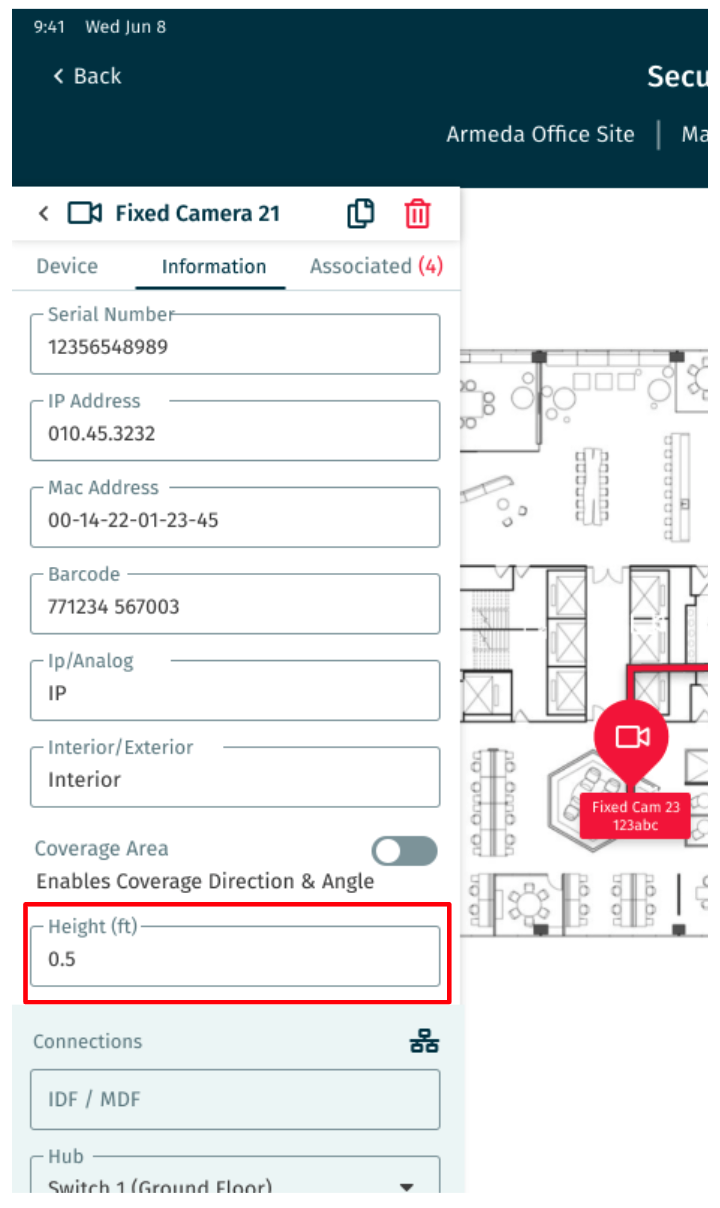
The most recent Web application release included the ability to configure each Customer Account with a preferred Unit of Measurement - either Feet or Meters. This setting is now reflected in fields in DesignOwl, such as Height.
SiteOwl Web App Update - Oct 6
SiteOwl Live: Improved Live Planning
The Live Planning Dashboard allows you to see a high-level view of the age and warranty status of all of your Live Sites. With this release, these charts are more actionable, allowing you to click the segments in any Live Planning chart and be taken to a pre-filtered list of the associated Devices.
Once on the Live Devices screen, you'll have access to many tools, including Filters, Inline Edit, and Configure Columns. You can quickly navigate back to the Live Planning Dashboard using the Live Planning quick link at the top left of the Live Devices list.
Project Plans Tab
Previously called Project Status, the Project Plans tab has been simplified to focus on its purpose: adding, reviewing, and removing Plans from Projects. The updated tab makes Plan names more legible and no longer includes the overall Project Status section which is now located on the Project Progress tab.
ServiceOwl Mobile App Update - Sept 14
Plan Filter Improvements
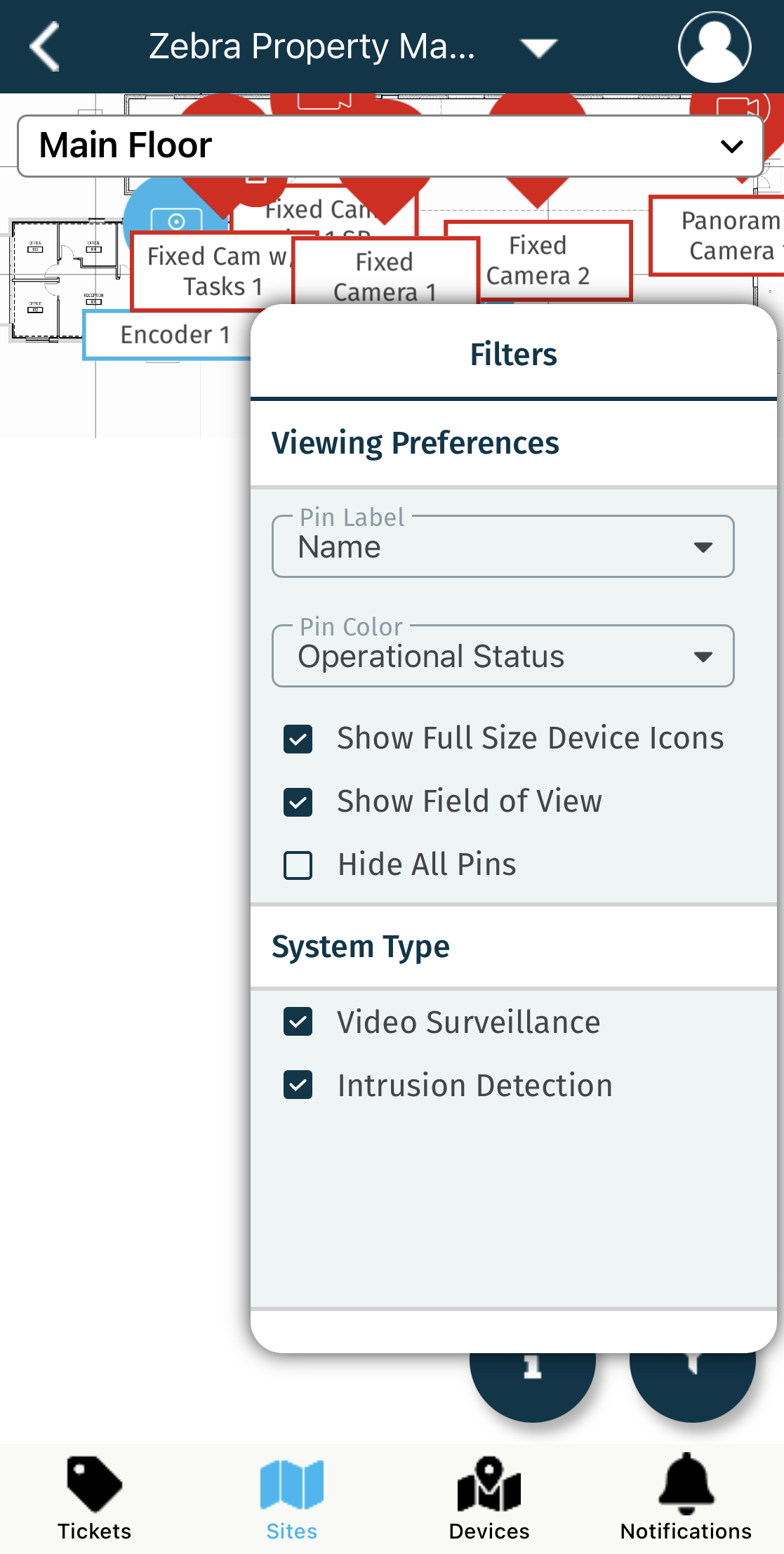
The ability to find what you’re looking for on a plan is a key capability of every SiteOwl mobile application. Improvements in this area have been added to other SiteOwl mobile applications and we’re excited to bring them to ServiceOwl.
In the Plan view, ServiceOwl now supports the following filter options:
- Selecting the Device Pin Label
- Choosing the Device Pin Color
- Adjusting the Device Pin Size
- Hiding all Device Pins
These options enable ServiceOwl users to customize their Viewing Preferences, making it easier to locate specific Devices quickly.
Unit of Measurement Support
Our most recent Web application release included the ability to configure each Customer Account with the Unit of Measurement to either Feet or Meters. The setting you choose in the Web application is now applied to ServiceOwl fields, such as Height. Unit of Measurement selection will be added to both DesignOwl and InstallOwl in Q4 of this year.
SiteOwl Web App Update - Sept 7
Change to Administrator Role Capabilities
Protecting your data is SiteOwl’s top priority. To help ensure that the most important information is safe and only accessible to appropriate users, we’ve updated the capabilities of the Administrator role. Due to the potentially large impact of the action, the Administrator role is now the only role with the ability to delete Plans, Buildings, and Sites. Project and Live Site Managers are still able to archive these locations but are unable to delete them.
Unit of Measurement Setting
To better support our global SiteOwl partners, we’ve added the ability to configure a preferred Unit of Measurement in each Customer Account. You can now choose Feet or Meters. Once configured, related fields like Plan Scaling and Height will display in your selected unit. It can be set by any Administrator in the Customer Settings on the Information tab and is coming soon to all mobile applications. Note that this setting is purely a label and will not convert any previously stored values.
SiteOwl Live: New Live Devices List Filters
Users of SiteOwl Live will find three new Filter options in the Live Devices List view:
- Device Age
- Labor Warranty
- Device Warranty
Utilizing these options, you’re able to drill-down to more specific groups of Live Devices. For example, you can quickly access all Devices with expired Labor or Device Warranties. In an upcoming release, we’ll harness these new Filters to enhance the Live
Planning
Dashboard, enabling you to click segments of any chart to access a list of corresponding Devices.
SiteOwl Web App Update - Aug 24
Project Progress Drill Down
We’ve expanded upon our recent Project Progress feature, which provides a high-level breakdown of an Installation Project’s Devices and Tasks by System Type and Device Type.
Now, each bar segment is clickable and will take you to a corresponding pre-filtered Project Devices list, where you can further filter, sort, edit, and export the information.
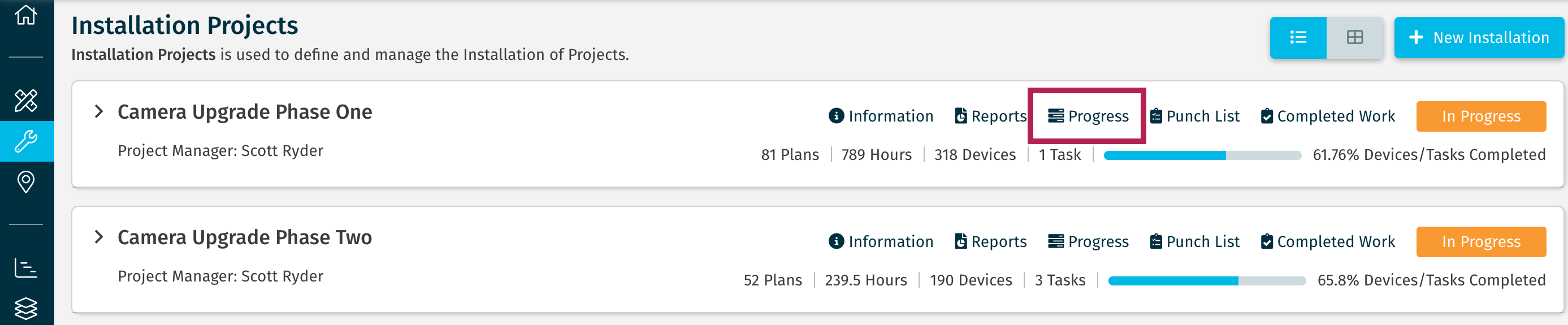
As a reminder, you can access the Project Progress screen in two ways from an Installation Project card:
- Select the Project's Information link, then go to its Progress tab
- Select the Project's Progress link
New Filters in Project Devices List
We’ve introduced two new filters on the Project Devices list which make it possible for you to drill down to specific Devices and Tasks.
1) Device/Task Type Filter
After specifying a System Type filter option, use the Device/Task Type filter to select one or more Device/Task Types. Use the search box to quickly find Device/Task Types by name.

2) Primary/Secondary Filter
The Primary/Secondary filter allows you to filter to only Primary or Secondary Devices and Tasks.

InstallOwl Mobile Update - Aug 24
Available in iOS and Android v. 2.2.3
Download the latest version from: Apple iOS App Store or Google Play Store
Download the latest version from: Apple iOS App Store or Google Play Store
Improved Plan Filter Options
We've added three new features that improve ease of use and give InstallOwl users more flexibility for how Pins are displayed in the Plan view.
1) Pin Label
Users can now choose which label to display beneath the Pins, or display no label at all. Previously, the Device Name was shown by default. Now you can select from the following Pin
Label options:
- Name
- Abbreviated Name
- Part Number
- No Label
2) Pin Color: Operational Status
Users can now quickly assess the Operational Status of all the Devices on a Plan by selecting this new option in the Pin Color drop down. Previously, only Device Color and Install Status were available. This option works in the same way as its counterpart in the Web Application.
3) Pin Filter Persistence
InstallOwl now persists the Filter options you’ve selected. This means your settings are now saved to your phone and are remembered, no matter which Customer Account or Plan you’re working in, until the next time you change them.
SiteOwl Web App Update - July 27
New Feature: Project Progress
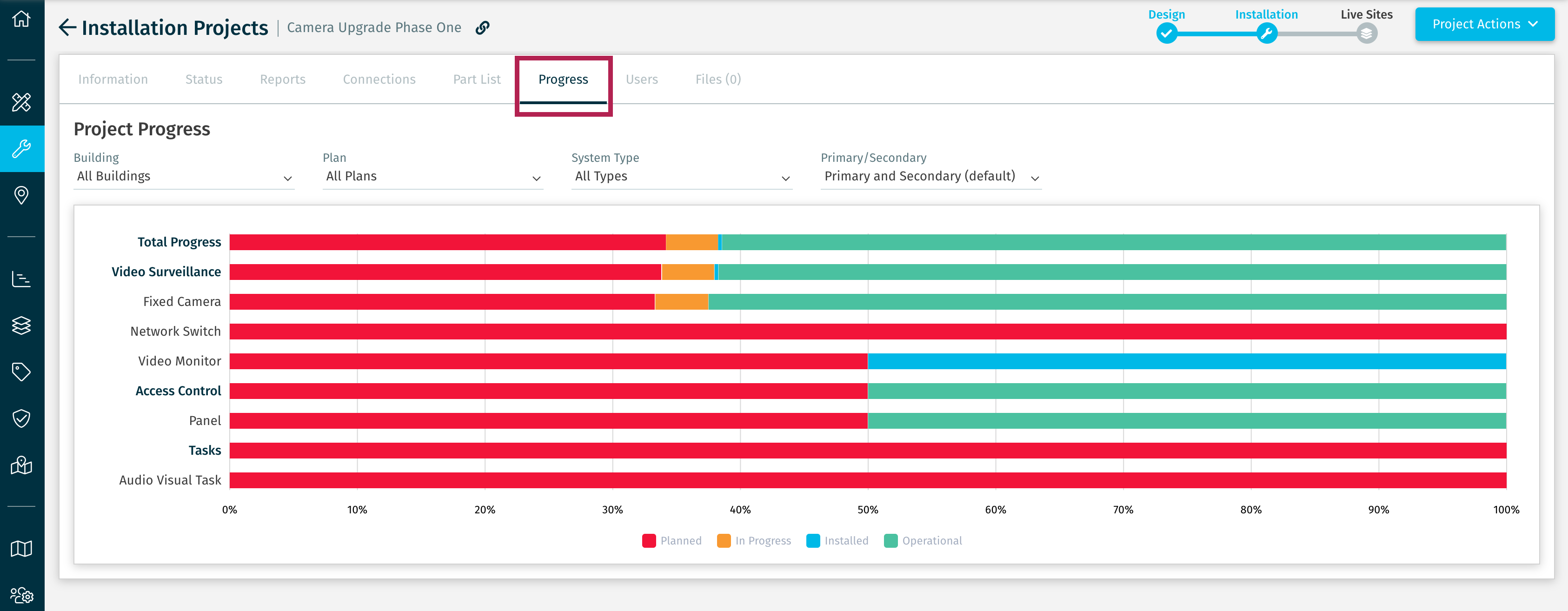
In this release, we’re launching an exciting new feature that will help you track the many moving parts and intricate timelines of your Projects. By utilizing the new Project Progress feature, you can quickly view a high level breakdown of a Project's Devices and Tasks by System Type and Device Type. View Project Progress by selecting the Progress link on the Installation Project card. You can also access Project Progress by going to the Project's Information link, then selecting the Progress tab.
Project Progress displays a progress bar for each Device/Task Type and aggregate bars for System Types. Additionally, the Total Progress of the Project is shown. The chart can be filtered by Location, System Type, and Primary/Secondary, allowing you to hone in on exactly what you need to analyze. In an upcoming release, each of the bar segments will be clickable, making it easy to drill down on a section of data and its related Devices and Tasks.
Improved Installation Reports
We've changed the Daily Installation Report and the Installation Activity Report to make them more relevant to the viewer. These reports now only include Projects to which you have been given explicit access, making it easier to find the information important to you. If a Customer or Project that you expect to see in the report is not present, check to ensure you have access to the Customer and/or Project.
DesignOwl Mobile App Update - July 6
Performance Improvements
This update includes improved loading times and increased responsiveness, especially while working in Plans. These changes will have a significant impact on the speed of walks conducted with DesignOwl and will be most noticeable during long, multi-hour work sessions. We will release another update to DesignOwl next month focused on stability and data protection.
Plan Interaction Improvements
We’ve made the following improvements to how you interact with Plans in DesignOwl:
- Selecting a Device brings it in front of any nearby Devices
- Quickly deselect a Device by tapping on the Plan
- Zooming is now based on where you’re pinching on the Plan
New Pin Color Option: Operational Status
Now you can quickly assess the Operational Status of all the Devices on a Plan by selecting this new option in the Filters > Pin Color setting. This option works in the same way as its counterpart in the Web Application.
Plan Filter Persistence
DesignOwl now persists the Filters > Viewing Preferences you’ve selected. These settings are saved to your iPad and are remembered no matter which Plan you’re working in, even when switching Plans in offline mode.
SiteOwl Web App Update - June 15
View All Project Role is Now View Only
Some Users should only be able to view one or a limited set of Projects or Live Sites. In the case of Live Sites, you’ve been able to do this by assigning the User the role of View Only, then giving the User access to only the Live Sites they need. However, in the case of Projects, your only option has been to assign the role of View All, without the ability to limit which Projects the User can view.
In order to give you control over which Projects a User can view, the View All role has been changed to View Only. As a result of this change, when assigning the View Only role to a User, you must also select the specific Project(s) the User can view. This works in much the same way as assigning Projects to Technicians.
As part of this change, Users who were previously assigned the View All role will automatically have access to all existing Projects to which they were previously assigned.
Select Project Role:

To give a User access to a Project, you have 2 options:
- Go to the Project’s Information link. Select the Users tab, then click the Add Users button.
.png)
- Or, go to Settings and select the User's profile. On the Projects tab, click the Add Projects button. A benefit of giving access from the User’s profile is that you can quickly assign multiple Projects or all Projects at once.
.png)

ServiceOwl Mobile Update - June 5
The latest release of SiteOwl's ServiceOwl mobile application includes some important updates and performance improvements. To ensure that you're able to take advantage of all the new features and enjoy the best possible experience with the app, we recommend that you download the latest version to your mobile phone as soon as possible.
 Version 1.6.0 is available for iOS and Android
Download the latest version to your mobile phone: Apple iOS App Store or Google Play Store
User Interface Improvements
We’ve introduced several improvements to the interface across the ServiceOwl application. The default screen for the application is now the Tickets list, allowing Service Technicians to quickly access the Ticket information they need while working in the field.
Selecting the Customer account to view is now faster and easier. Similar to all other SiteOwl apps, the Customer drop-down now shows the three most recently accessed Customers at the top of the list. Additionally, the alphabet jump list helps you more quickly navigate to a Customer by name.
Performance Improvements
We continue to focus on improving the overall performance and reliability of the system. This release addresses several known issues and introduces enhancements to ensure a smoother user experience.
SiteOwl Web App Update - May 18
Improvements to Service Tickets Functionality
After a recent review of SiteOwl’s Service Tickets features, including the ServiceOwl mobile app, we identified some areas that are underutilized and caused confusion or unneeded work on the part of our users. Based on this review, we’ve released several modifications to simplify and improve Service Tickets. These changes have no effect on the ServiceOwl mobile app, which will also receive workflow and interface improvements in early June. We’ll let you know when those changes are available.
- You are no longer required to specify Actions when creating a Ticket, or when adding a Device to a Ticket. We found that the Action types were not being utilized and added unnecessary complexity to the Ticket creation process.
- On the Service Tickets screen, the New Ticket button will create a general Ticket that is not related to a specific Device. An example might be: ‘All cameras on this floor are not working.’
If needed, after saving the new Ticket, you can link a Device to it, in two way:

SiteOwl Web App Update - May 4
Configurable Plan Reports for Projects and Live Sites
The information you need to convey in a Plan report can vary greatly depending on the status of the Project or Live Site, and to whom the report is being provided. Customers let us know, for example, that in some cases they want to include Part Number and Manufacturer, but there are times when this information should be excluded. We also received requests to enable these reports to show Installation Status while technicians are working, but Operational Status when it’s time for project closeout.
Based on this and other feedback, we’ve enhanced three Plan reports, adding a large amount of flexibility in how and when these reports can be used:
- Project Overview (for Projects)
- Multi-Plan Report (for Projects and Live Sites)
- Numbered Plan Report (for Projects and Live Sites)
When generating these reports, you can now select up to eight columns to include in the Device details section. Available columns range from Device identifiers like Device Name and Abbreviated Name, to details like IP Address and Description. Additionally, your selections will persist until you change them, making future report generation quick and easy.
Project Configuration Options:
Live Sites Configuration Options:
InstallOwl Mobile Update - May 3
Performance Improvements
We’re pleased to release a number of performance improvements across the InstallOwl application. In particular, Users will notice improvements when initially loading Plans and when interacting with Plans that have many Devices and Tasks. Watch for continued investments in the performance of InstallOwl in future releases.
Editing Profile
InstallOwl Users can now edit their basic profile information in the app. This allows for changes to important two-step authentication fields such as Email Address and Cell Phone number. To access your profile in InstallOwl, tap the profile icon in the top-right corner of the Project Dashboard, then select the My Profile option.
DesignOwl Mobile Update - March 22
Performance Improvement
We continue to make investments in DesignOwl performance. In this release, we focused on improving interactions with Devices on Plans. Adding and moving Devices is now faster, as well as accessing and editing Device details. Additional performance improvements will be made in future releases of DesignOwl and all SiteOwl applications.
Interface Improvements
You’ll find a number of improvements to the interface in this release. Here are a few highlights:
- Selecting the Customer account to view is now faster and easier. Similar to the web app, the Customer drop-down now lists the three most recently accessed Customers at the top. And a new alphabet jump list to the right of the list helps you more quickly navigate to a Customer by name.
-
When viewing a Plan, the Device/Task name shown at the top of the Edit Panel is now more clear and displays the full name.
- The process of adding Users to a Project has been improved, making it easier to add Users that have access to the Customer.
SiteOwl Web Update - March 13
SiteOwl Projects: Report Optimizations & Tasks
You might have experienced Plan Reports appearing crowded or difficult to view due to the density or volume of Pins on a Plan. To solve this, we’ve introduced a new report configuration option: Optimized For. This option allows you to select whether the report contains Standard or High-Density Plans. When the High-Density Plans option is selected, Plans will appear larger in the resulting report, making Pins more legible.
Available when generating the following reports:
- Project Overview
- Multi-Plan Report
- Enumerated Plan Report
- Icon Plan Report
SiteOwl Live: Live Planning Dashboard
We’re excited to introduce a major addition to SiteOwl Live: Live Planning! If you license SiteOwl Live, you now have access to this new Customer menu option.
Accessible only to Users with a Live Site Role of Manager, the Live Planning dashboard provides aging and warranty information for a Customer’s Live Devices in an easy to read graphical format.
The Live Planning dashboard includes:
- Age of all Live Devices
- Device Warranty Status for all Live Devices
- Labor Warranty Status for all Live Devices
- Device Warranty Status by System Type
- Labor Warranty Status by System Type
More detailed information can be downloaded by clicking the Reports button in the top right corner, then selecting the Inventory Report and the Aging and Warranty Report. Together, these features provide an in-depth view of a Customer’s Live Sites and Devices, with actionable data for future support and management.
InstallOwl Mobile Update - February 13
 Available in iOS and Android v. 2.2.0
Download the latest version to your mobile phone: Apple iOS App Store or Google Play Store
View Cable Pathway and Connection Lines on Plans
Users of InstallOwl can now view Connections and Cable Pathways that were created in the web application. Selecting a Device on a Plan reveals all of its related Connections and Cable Pathways.
The appearance of these lines is identical to that of the web application:
- Lines originating from the currently selected Device are highlighted.
- Connection lines display as dashed, while Cable Pathways display as solid lines.
- Line color is based on your Pin Color setting.
And a new Filter option allows you to show or hide all Connections and Cable Pathways.
Customer Selection Enhancements
Selecting the Customer account to view is now faster and easier. Similar to the web app, the Customer drop-down now shows the three most recently accessed Customers at the top of the list. And a new alphabet jump list helps you more quickly navigate to a Customer by name.
2-Step Authentication is Now Required to Login
As with all other SiteOwl applications, after entering the email address and password, a one-time code will be sent to the cell phone number or email address in the User's Profile. Users can tap the Change Delivery Method option above the Submit button to set their preference to receive future codes via Email or Text, as long as both fields are completed in their Profile. Text is often the preferred method when working on a mobile device.
Administrators: Action May Be Needed
To ease the transition to 2-Step Authentication, we highly recommend all User Profiles include both an email address and cell phone number, enabling Users to easily receive and enter authentication codes on mobile devices.
Review the Information tab of your Integrator Users to ensure both fields are completed correctly.
Integrator User Profile:
Your Customer Users (subcontractors, end-users) must log in to the web application to edit their own User Profile if changes are needed.
Customer User Profile:
SiteOwl Web Update - January 30
Improved Integrator Customers List
For Integrator Users with a Role of Administrator or Coordinator, we’ve modified the Customers list to make it easy for you to quickly identify which Customers you can manage versus those you cannot. Previously, this list displayed all Customer accounts related to your Integrator, including those not added to your User account. Now, the Customers list is separated into two tabs: Your Customers and Other Customers.
The Your Customers tab lists all Customers associated with your Integrator account that you can manage. Clicking a Customer name will take you to that Customer’s Dashboard.
The Other Customers tab lists all Customers associated with your Integrator account that you cannot access. Hovering your mouse over the lock icon displays a list of Users who have the ability to grant access to that Customer if needed.
Live Devices: Aging and Warranty Report
If you license SiteOwl Live, this new report will greatly enhance your ability to assess the status of Live Devices. From the Live Devices screen, click the Reports button, then select the Aging and Warranty Report. Note that this report is accessible only to Users with a Live Site Role of Manager.

The report provides Aging and Warranty data grouped by Part Number, Device Type, and Plan in a multi-worksheet Excel file format, allowing you to take advantage of features like Filtering and Pivot Tables.
Example of the System Warranty Worksheet:

SiteOwl Web Update - January 12
Improved Image Display for Devices & Tasks
When viewing a Project or Live Site Plan, images can provide some of the most important and helpful information by illustrating the full story of a Device or Task, visually informing your team of its history and its current state. Previously, images were listed in chronological order with the most recent image at the bottom. Now, images are shown in reverse chronological order with the most recent image at the top. In addition, images are now grouped by the date added and by the phase the Project was in when the image was added - Design, Installation or Published to Live Sites.

New and Updated Device Types
When editing a Project or Live Site Plan, you'll find the following new Device Types are now available:
In addition, the names and icons of a number of existing Device Types have been modified to improve their recognizability and make their application more clear. Review a complete list of available Device Types here: SiteOwl Device Type List
 When working in a Plan, use the search bar to quickly locate a Device or Task. Matching results will immediately display as you type.
Live System Has a New Name
Live System is now Live Sites: To more accurately represent the function of this area of the product and its features, the Live System has been renamed Live Sites. If you've licensed SiteOwl Live, you’ll see this new name reflected across the platform, making it clear when you’re working with a Live Site that contains Devices that are Installed and Published.
SiteOwl Web Update - January 03
Adding Resources to Live Sites
If you’ve licensed the Live module, you’ll find improvements to the way in which Users are given access to Live Sites, making the process of granting access more secure and intuitive. With this change, Users are added to Live Sites much like they are added to Projects. When viewing a Live Site, you’ll find a new Resources tab where Users can be added - giving them access to the Live Site and related Tickets. A User’s level of access to Live Site features (on both Web and ServiceOwl apps) is determined by their assigned Live System Role. In addition, some Live System Roles have been modified with regard to both functionality and definition, giving you greater ability to control User access.
For complete details on these changes, please review the Live System Site Resources Summary.ServiceOwl Mobile Update - January 04
Available in iOS and Android v. 1.5.5Download the latest version to your mobile phone: Apple iOS App Store or Google Play Store
This ServiceOwl mobile app update includes several important fixes and performance improvements. To ensure that you're able to take advantage of all the latest features and enjoy the best possible experience with the app, we recommend that you download the latest version to your mobile phone as soon as possible.
Comments
0 comments
Please sign in to leave a comment.