
SiteOwl Release - September 28, 2026
New Features
Headquarter Favorites
Your best device configurations shouldn't be stuck in one account. With HQ Favorites, your team builds a configuration once, with the right device, attributes, secondary devices, and tasks, and it's ready to drop onto plans in every account you manage.
Build Once, Use Everywhere
HQ Coordinators and Admins now have a Templates page in HQ for building your organization's favorites library. Save a favorite and it's live across all your accounts instantly, with nothing for site teams to set up or turn on. Bundle a camera with its cabling and install tasks, or package a full commissioning sequence as a set of tasks, and every project starts from the same proven setup.
You decide what your HQ Favorites contain and how they are ordered. Favorites are grouped by system type, and a simple drag sets the order every account sees. If you want to start from an existing set of Account Favorites, import and bulk edit them from a spreadsheet using our familiar Favorite import tool. SiteOwl checks the entire file before anything goes live and shows you exactly how many favorites will be created or updated.
Consistent Favorite Standards
HQ favorites are read-only in accounts, so your standard stays your standard. Teams place them on Plans using the new HQ Favorites section and can still adjust the device on their plan as the site requires. When a favorite is retired, archive it and it disappears from every account at once, while devices already on plans stay exactly as they were.
Consistent Favorite Editing Experience
Favorites (HQ or Account) now use the same editing panel your team already uses to configure devices on a plan. Give each favorite its own name, like "Standard Interior Camera Kit," add secondary devices or tasks in a couple of clicks, and save when it's ready.
In the plan panel, HQ Favorites and Account Favorites now sit in separate sections, so it's always clear what came from HQ and what your team built. Search finds favorites by name, device name, or part number. Saving a device from your plan as a favorite is still a simple single click with the Create Account Favorite option.
Placement Category
Find device location and placement information together in a new Placement category in the Device Information panel. The section includes fields like Site, Building, Plan, Coordinates, Interior/Exterior, and Height. In Projects, it appears under Action, and in Live it appears under Identification. The same grouping is reflected in Project Devices and Live Devices exports.
Improvements
Project and Site Information
See everything that matters about a project or site in one place. The Project Information and Site Information tabs now display ownership, schedules, locations, identifiers, ticketing, and notes in clearly grouped sections, so your team can get the full picture without opening an edit panel. Easily edit long Project or Site notes right on the tab, with Save and Cancel controls for users whose role allows it.
Project Filter Improvements
The Project filter on the account-wide Project Devices page now lists each project's stage (Design or Install) beneath its name. If a design project and an install project share the same name, you can now tell them apart at a glance instead of picking between two identical entries. You can also type "design" or "install" to narrow the list, and once a project is selected, the filter shows it as "Project Name (Install)" so it's always clear which one you're viewing.
Clearer Invite Process
Administrators now have full visibility into outstanding invitations. Users with a pending invite appear in the Headquarters Users list with a status of Invited, and the Status filter can be used to view all pending invites at once.
Access can also be configured before a user's first login: open an invited user to assign them to accounts, projects, and sites using the same workflow as for active users. HQ Administrators and HQ Coordinators can both make these assignments, with Coordinators limited to the accounts they manage. Once the invite is accepted, all assigned access takes effect immediately with no further setup required. Invited users are also marked as pending in account, site, and project member lists to prevent duplicate assignments.
Inviting someone who is already an active account user now shows a specific message instead of a generic failure. The message appears in the Invite User flow when the email already belongs to an active user.
SiteOwl Release - September 11, 2026
New Features
Easier Plan Scale
Plans without a scale now show a clear “Set Scale” prompt instead of leaving the space empty. Opening it takes you straight into the existing scale flow, so you can scale the plan and continue your Plan work. Setting scale lets you access features such as scaled cable pathways and, later this year, scaled coverage range. This feature appears on web and tablet plan views to Account Managers and Administrators.
Improvements
Performance and Stability
We put significant work into performance and stability this release, with most of it concentrated in the Plan views. Expect frequent and common use cases to perform better, especially at scale. Saving, dragging and dropping, and bulk actions (creating favorites, duplicating, archiving, etc.) should all feel faster and more predictable. This is ongoing work and you’ll see more of it in upcoming releases.
Integrator License Counts
For our integrator users, HQ Users now shows each user’s license type, along with summary counts for each license bucket and a filter that narrows the table by type. Now you can see the whole distribution at a glance and filter down to a single tier when you need to audit it. That makes seat planning easier, whether you’re onboarding a new crew, deciding if you need more licenses, or cleaning up users who no longer need the access they have. You can find it on the HQ Users page.
Clearer HQ Role Descriptions
HQ role descriptions now explain what each role can actually do in the product instead of just naming it. With the descriptions in place you can match the role to the job the person is doing, which keeps permissions tighter and cuts down on the follow-up requests that come from getting it wrong the first time. You’ll see the updated descriptions in the HQ role selection flow.
SiteOwl Release - August 25, 2026
New Features
Favorite Accounts
Teams often return to the same customer accounts throughout the day, whether they’re checking activity, following up on open work, or reviewing account details. We added favorite accounts to make those repeat workflows faster and more convenient.
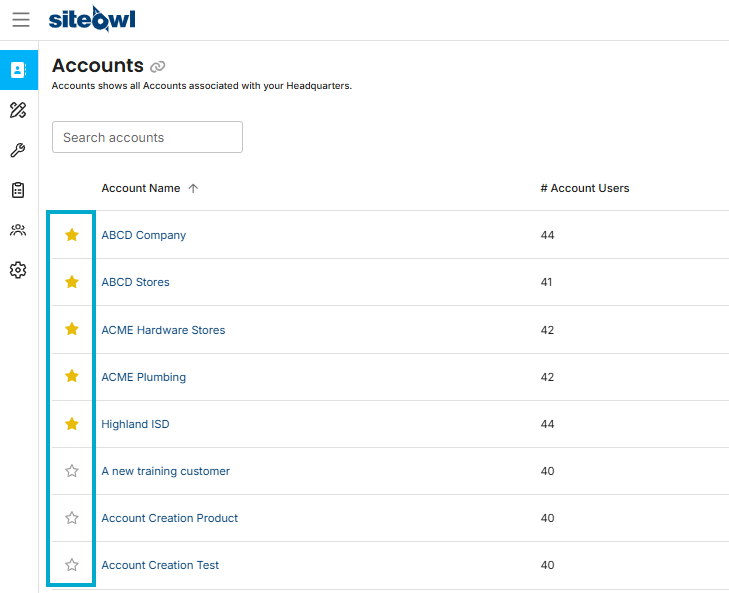
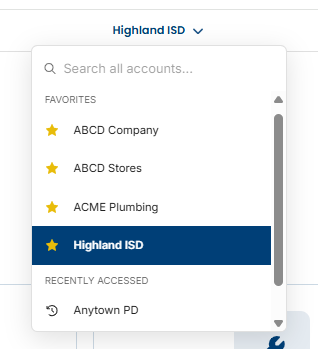
To favorite an account, navigate to the Accounts List, click the star next to any account name to favorite it. Favorited accounts move to the top of the list and also appear in a Favorites section in the account switcher dropdown.
Improved Account-Wide Device List Pages
Device data is more useful when it’s easier to review at scale. We updated the account-wide device list pages (Project Devices and Live Devices) to make exporting and reimporting large amounts of data faster. Every filter and column configuration is now more easily accessible and importing happens right on the page too, with the blank template easily accessible.
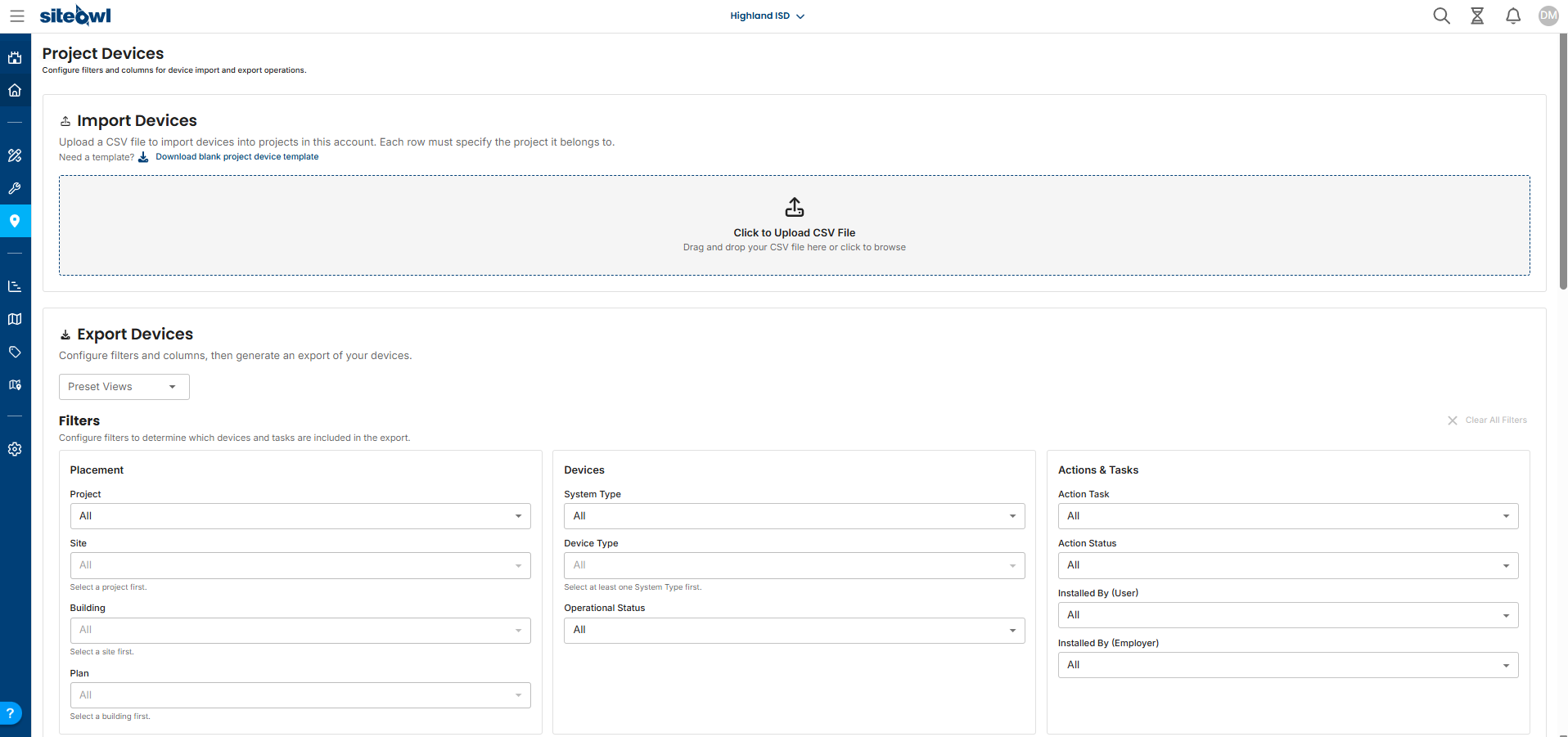
Later this quarter we'll be improving the Project and Live dashboards so you still get account-wide insights at a glance. Watch the release notes for those.
Improvements
Service Ticket Section on Devices
Service work is easier when the most relevant information is available where users already are. We've revamped the service tickets section on devices so teams can view related service activity in the same place they manage device details. Important information like the status of the ticket, who requested it, and when it was opened or closed is now readily available.
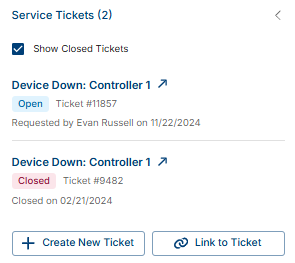
Open a Device and use the Service Tickets section to review linked tickets. Tap the ticket subject to open the full ticket, and use Show Closed Tickets if you want closed items included in the list.
Clearer and Useful Creation Messages
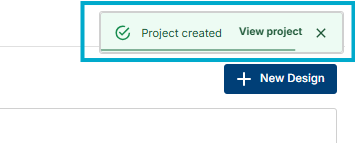
System messages are most useful when they are easy to notice and easy to understand. We improved our messaging so users get clearer feedback when actions succeed, fail, or need attention. After creating something, look for the confirmation message at the top right of the screen. Use the View action in that message to jump straight to the new record, or dismiss it if you’re done.
Account Filter on the HQ Service Tickets Page
As the number of service tickets grows, finding the right set of tickets quickly becomes more important. We added an Account dropdown to the HQ service tickets page so users can narrow the list to a specific customer account with less effort.
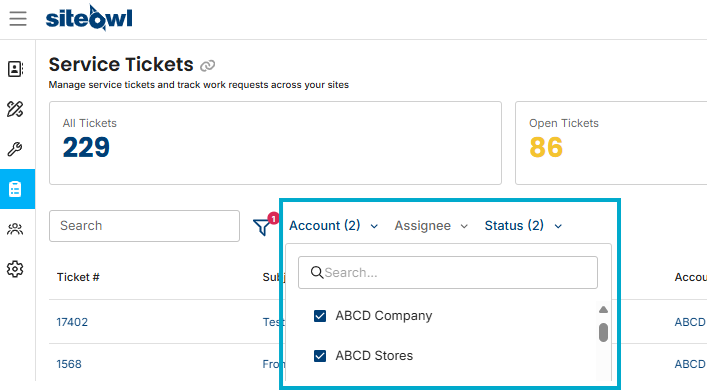
On the HQ Service Tickets page, open the Account filter in the toolbar and select one or more accounts. The ticket list updates to show only tickets for those accounts, while still working alongside the existing status filters.
SiteOwl Release - June 29, 2026
New Features
Open Edit Session Indicator
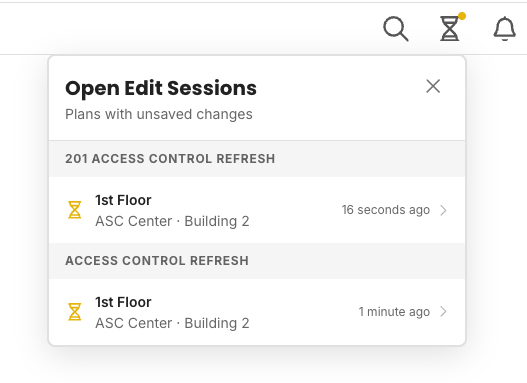
When you edit a plan in SiteOwl, your changes are preserved even if you navigate away before saving. Until now, though, there was no way to tell at a glance that an edit session was still active, which could lead to confusion about why device counts or project data looked out of sync.
We've added a global indicator that appears anywhere in the product when you have an open edit session. At a glance, you'll know that unsaved plan edits are in progress, and you can jump back to that plan to review and save your work whenever you're ready.
Unsaved Changes Warning
Previously, if you were editing a plan and clicked away, whether to another page, a different project, or anywhere else in the app. SiteOwl would quietly retain your edits in the background. We've added a warning dialog that appears whenever you attempt to navigate away from a plan with unsaved changes. The prompt gives you the option to stay and save, or to leave and maintain your edits in the background so you're always in control of when your edits get committed.
Additional bug fixes and performance improvements.
Comments
0 comments
Article is closed for comments.